Appearance
Relational database environment setup
For the relational database we will use MariaDB. The XAMPP is ready to use web development environment that has bundled MariaDB database as part of it. Since this course does not cover how to install a DMBS, this is easy and sufficient way to get working MariaDB database on your own computer.
Required software
- XAMPP
- Includes MySQL database, Web server, PHPMyadmin and PHP environment
- MySQL Workbench
- Database management / query tool
- Needed because web based tools, like PHPMyAdmin can’t handle large files
- Also has database design features (not covered on this course)
XAMPP installation
- Download XAMPP
- https://www.apachefriends.org/download.html
- Pick latest version / 8.2.12
- Run installer
- Change install location (if not by default) to C:\XAMPP
- Avoids permission problems
- Change install location (if not by default) to C:\XAMPP
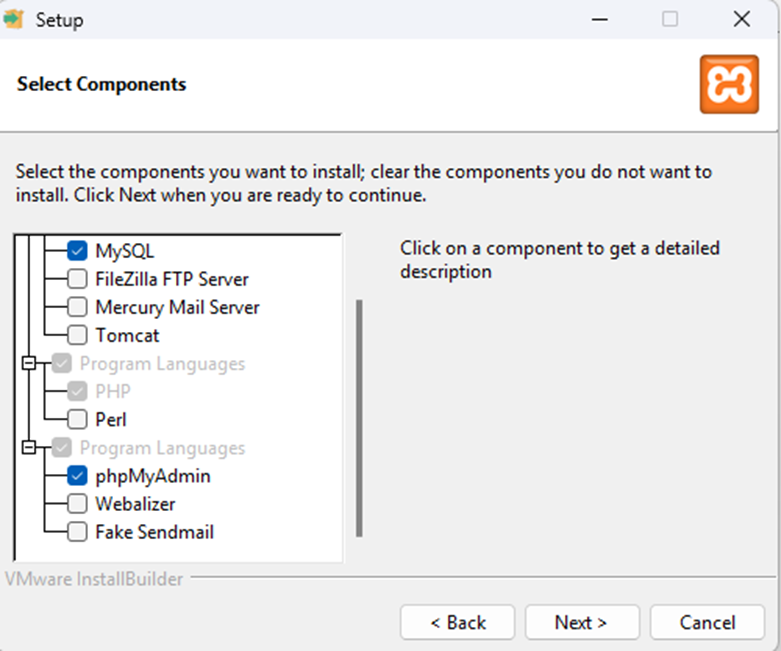
- You can uncheck tomcat etc. (like in the picture)
Run MySQL with XAMPP
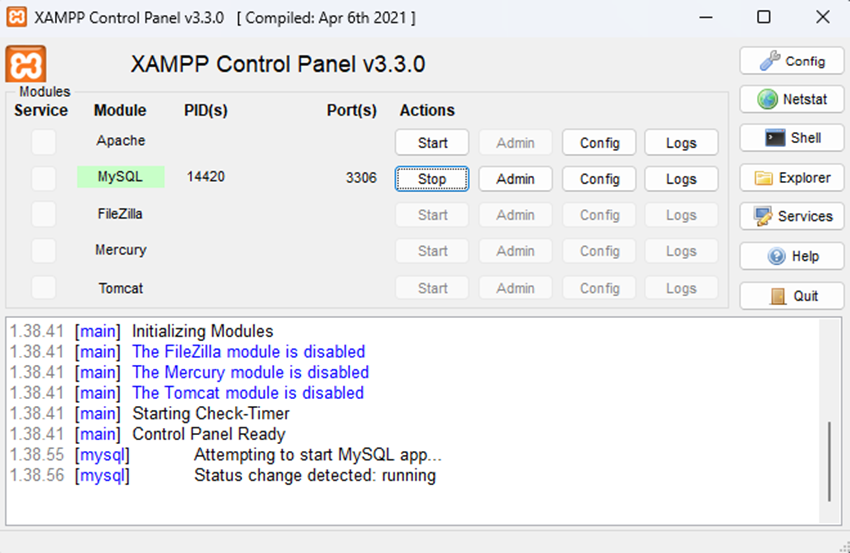
- Start XAMPP control panel
- Click start on MySQL
- Check that MySQL is running
WARNING
When you do not need the MySQL, it’s good idea to stop the database before shutting down the computer to avoid database corruption
MySQL Workbench install
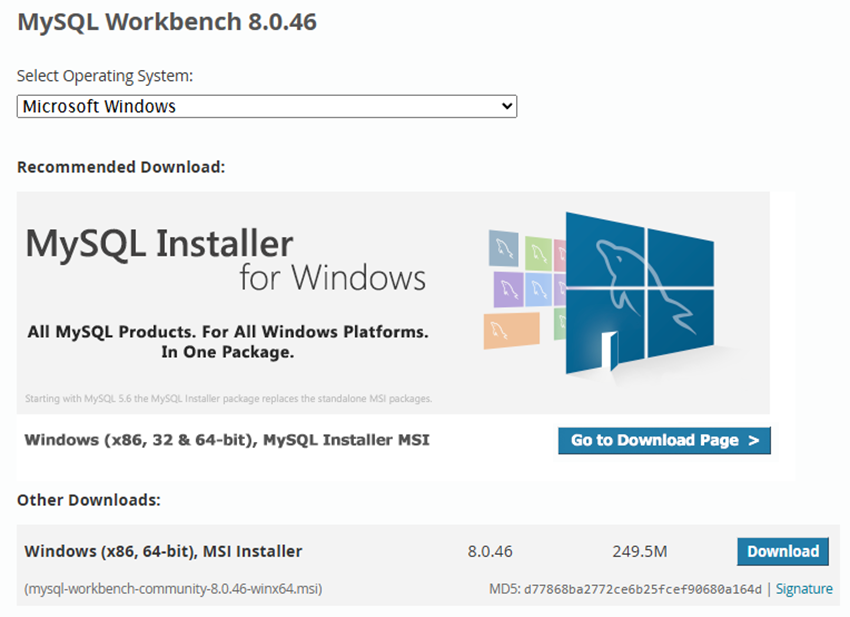
- Download
- https://dev.mysql.com/downloads/workbench/
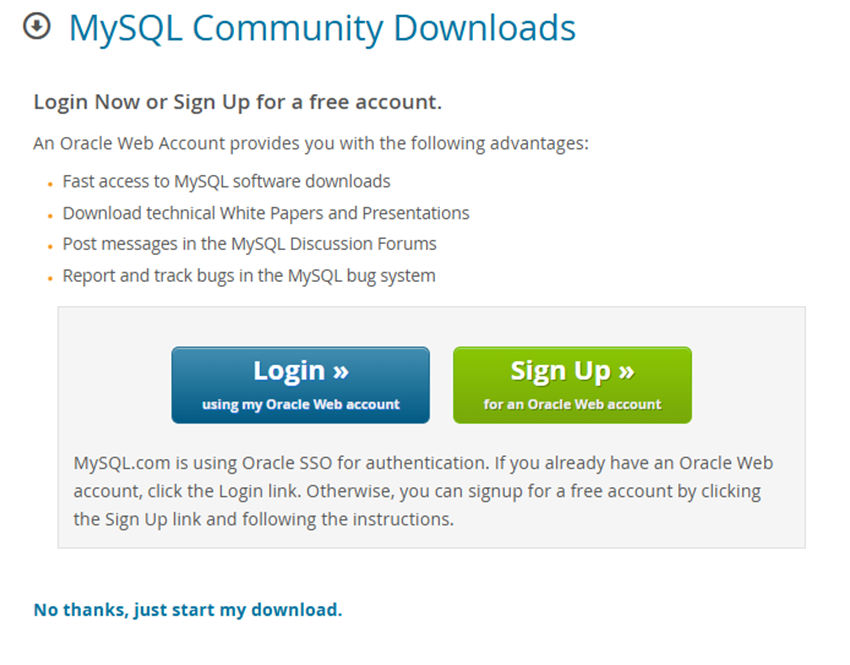
- Pick the ”other downloads” option
- Skip the login / account creation
- Choose ”No thanks, just start my download” from the bottom
- Install with default options
Sample data
- The sample data is provided as SQL-file in Moodle
- Download the SQL file (it’s compressed, extract it first)
- Original data is from:
Connect the MySQL Workbench to database
- Start MySQL workbench
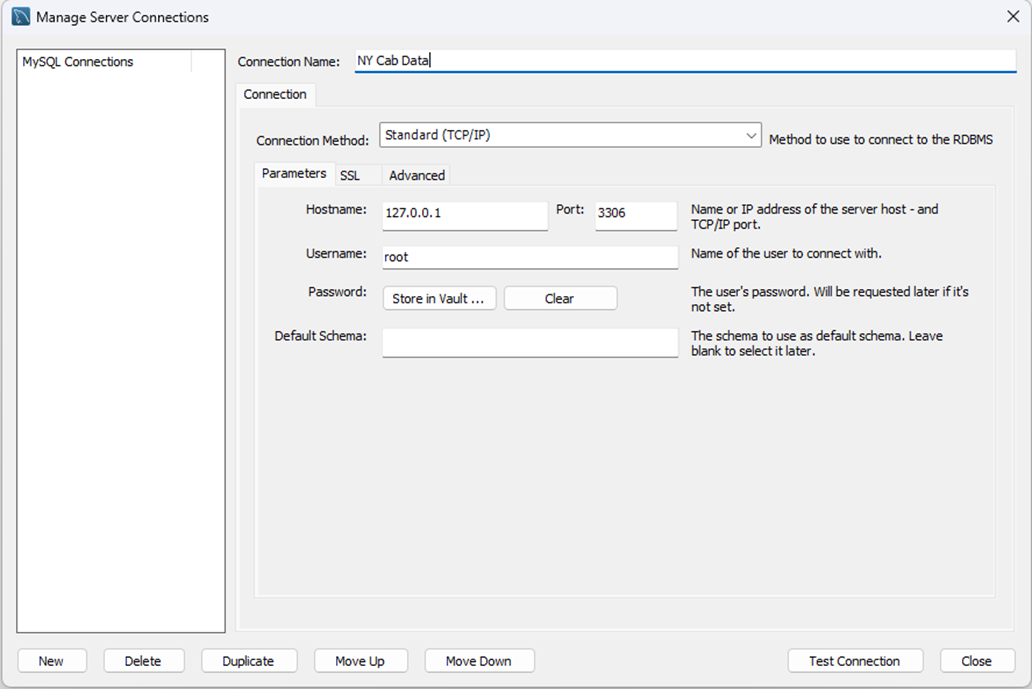
- Select Database -> Manage Connections
- Click new
- Give connection a name
- Add connection details, see picture for reference
- Hostname: 127.0.0.1
- Port: 3306
- Username: root
- No password
DANGER
Never use root user without password in production. In MySQL / MariaDB this user has all permissions by default. Without password malicious user can do anything on the database.
By default XAMPP is only accessible from your local computer and should only be used for testing or development purposes
Test connection
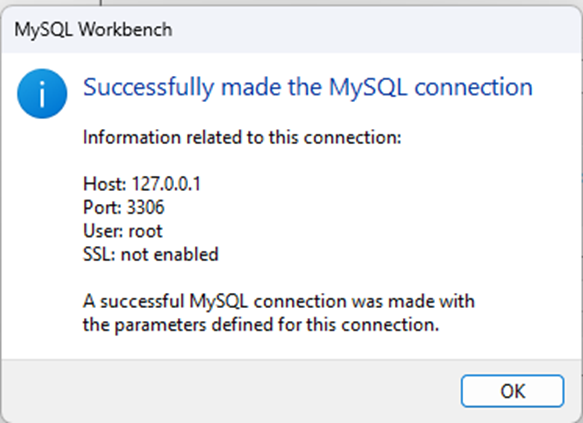
- Click test connection
- Ignore the warning about version incompatibility
- You should see the success message
Connect to database
- Select Database -> Connect to database
- Stored Connection -> Choose your previously saved connection
- Click OK
TIP
Sometimes the MySQL Workbench crashes when the database connection is made this way. Try selecting the connection from the main page. You might need to scroll down or close some content, depending on screen size.
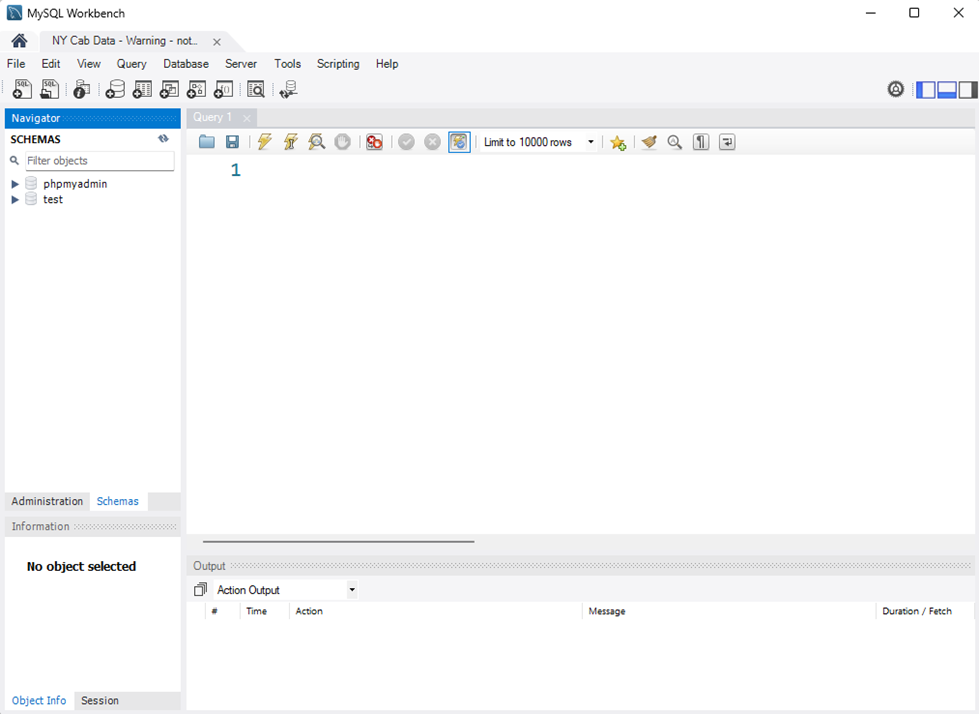
After successfull connection, you should see the query window
Import the data
- Drag & drop the file into Query window or choose File -> open SQL file
- Open the SQL file
TIP
Directly running the script might get stuck before it even starts
- When you have the SQL Script open in the query editor, click on the lightning bolt icon to run it
- This can take some time, follow the output window
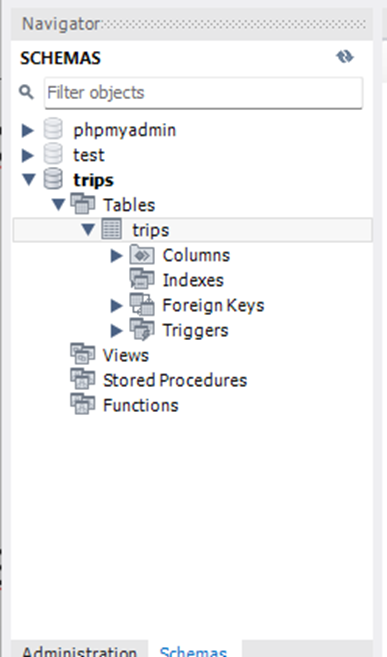
Click refresh and you should see the new database and trips table
Check the data
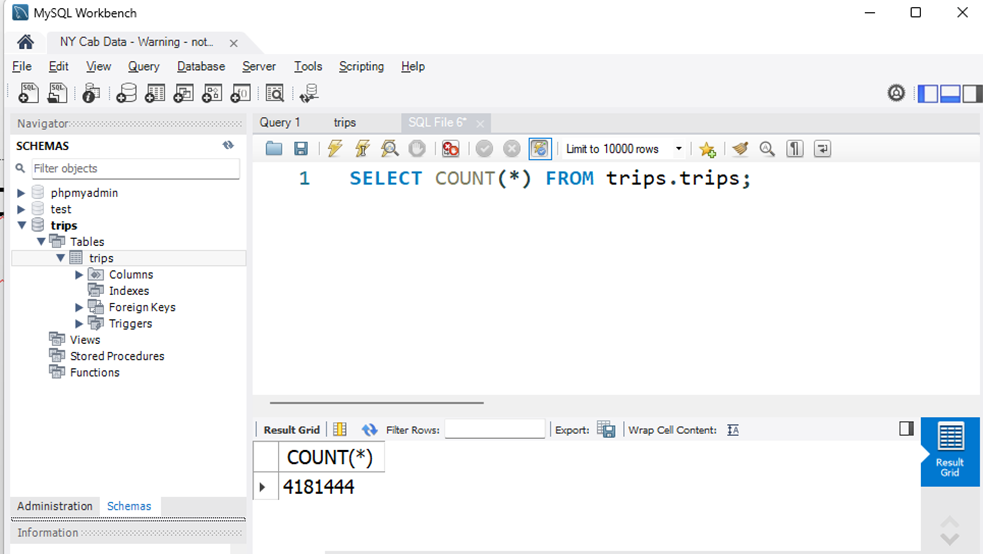
Run following query to check that you got all the data
SQL
SELECT count(*) FROM trips.trips;For the sample month the number of rows returned should be
4 181 444